

Video Conferencing Tip (COVID-19/Coronavirus edition): Look Behind You! 😯
/
Remember, people can see what is behind you in your office during a video conference!
Read MoreRemember, people can see what is behind you in your office during a video conference!
Read MoreI am happy to announce that The Tech Savvy Lawyer.Page Podcast will be hosted by Libsyn. I will be able to reach a wider audience with Libsyn. But I will also post a link from the blog.
Meantime, you follow the show through your podcast place at http://thetechsavvylawyerdotpage.libsyn.com/rss
Video conferencing or virtual meetings are accelerating in demand given COVID-19/Coronavirus. The Shelter at Home Orders requires more and more professionals to work from home. Attorneys are within this bandwidth.
While many attorneys are used to taking their laptops home for some light work, many are not prepared to be 100% teleworking. One of the tools being utilized by both lawyers and the government is video conferencing. Here is a straightforward device to help make you appear a little bit better to the viewer - Lume Cube.
I came across this device last week. Lume Cube (specs) is roughly under a two-by-two inch device that suction cups behind your computer monitor, laptop, tablet or smart-phone device. It helps highlight the video-caster's face. It comes with two light diffusers - warming and softening. It has an internal, non-replaceable Lit-Ion Polymer battery that lasts "Run Time: 2.5+ Hours @ 50% Brightness (30-45min @ 100%)". It is not bad for a $49.95 device (as of this posting down from $79.95) - see the before and after pics below.
The difference is subtle but significant. To control the light settings, there is a downloadable app that allows you to control the light remotely through Bluetooth. You can control the brightness, reduce red-eye, and utilize four different modes (Flash, Constant, Strobe 1, and Strobe 2). Its simple, straightforward, and perfect for the newbie!
Sure, there are other lighting options out there. My only complaint with the Lume Cube is the enclosed Micro USB-A wire is a little short: As I am mostly using this on my iMac and it is short on USB-C inputs, I can't easily use an extra USB-C Hub to power the Lume Cube other than my iMac (unless I have an extra Micro USB-A wire with enough length). But for a starting point at $50, this overall package is not a bad place to begin with for your teleconference lighting needs.
Two Thumbs Up! 👍👍
Happy Shelter-In-Place Lawyering!
The legal profession is one that can weather through this COVID-19/Coronavirus pandemic. We can easily more our place of work from a traditional office setting to a home office with little interruption. But with that transition (especially those not used to working from home), we need to be a bit wearier that our client information is secure. Curious kids, unassuming family members, and those with more nefarious intent can accidentally or deliberately create a security breach, access your client's data files, and cause some bar complaints down the road.

Password protect your home office computer!
Mitigate this with some simple actions: Password protect your computer!
For Mac Users, go to your Apple icon on the top right, select "Security and Privacy," then under the "General" set login password. Power tip: Use the "Require Password" after x minutes when the computer goes to sleep mode or your screen saver begins. This way, you can ensure security should you walk away for a few minutes and forget to log off or shut down the machine. Super Power tip: On the same General" tap, you can use your Apple Watch to unlock your Mac (and specific applications)!
For Windows Users, there are at least two easy ways you can set a password for a user account.
Enter your "Control Panel", under "User Accounts and Family Safety" choose "Change Account Type," under "Manage Accounts" select the "User Account" you want to change, click on "Create a Password", enter your password (look for a future post about creating and securing your passwords), renter your password, elect whether your password is case sensitive, and click "Change" password; or
On your keyboard, Press Windows+I, select "User and accounts", select sign-in options, under "Password" (look for a future post about creating and securing your passwords) select "Add", create a new password, provide a "New password", reenter the password, provide a password hint (if so desired), click next then click finish.
Working from home may be a new challenge for some of us; let’s remember to be smart about it when we do!
In this podcast, I talk with lawyer, blogger, and entrepreneur, Carolyn Elefant. Carolyn owns the Law Offices of Carolyn Elefant PLLC, a national firm based in Washington, DC focused on power, pipelines, and property rights. Carolyn is the founder of MyShingle.com, which was launched in 2002.
Her blog inspires, empowers, and celebrates solo and small law firms. Carolyn is also the author of Solo by Choice and co-author of Social Media for Lawyers.
Listen in as Carolyn and I discuss the technology changes in the legal arena from over the past 17 years of her practice, how she is using technology to market her law practice and her perspective for the future in legal tech.
Come join us!

Carolyn can be reached at:
SHOW NOTES:
Carolyn's Tech Equipment
SideTrack (extra monitor for your laptop)
Windows/Mac Attorney Specific CRM Products
Windows/Mac CRM Products**
Mac (CRM Products)
Other Products Carolyn Mentioned
* Product I use too!
** There were a couple of product's Carolyn mentioned that at the time of posting, I could not find. But, will update presuming they still exist.

Although many of us are sheltering in place due to the Coronavirus/COVID-19, it does mean that business stops. Phone calls and e-mails are easy to make from home. But we still have to mail documents through the United States Post Office. Instead of going to the post office, you can print your postage from your computer!
Websites like USPS, Stamps.com*, and Pitney Bowes allow you to print stamps on individual blank stamps (which will enable you to vary the value of each stamp), to print stamps and addresses on envelopes and to print postage including Priority Mail and Express Mail directly on mailing labels. This will help limit the number of times you need to go to the post office (and possibly expose yourself). You can print your differing postage values on prepaid stamps, on envelopes directly, and labels for packages.
I have been using Stamps.com for over ten years. I can tell you that printing postage from your office will save you time in dealing with the post office, give a sharp, professional look to your mailings and make it a snap when you have to get a receipt for Priority Mail, Priority Mail Express and Certified and Return Receipt Mail at your post office postage on prepaid stamps.
Extra Tip: You can print FedEx and UPS labels off your computer from their respective websites. Stamps.com allows you to incorporate your UPS account into its service and Pitney Bowes does the same for FedEx.

With today’s technology, embedding a web browser link (or, more popularly, “hyperlinking”) is a necessary skill. It may sound tedious to the unfamiliar drafter, but hyperlinking is a process that doesn’t have to take longer than 30 seconds.
What is hyperlinking? The best way is to demonstrate. If you click here, you will be redirected to the Federal Register. Or, check out Congress’s archive of public laws. As you can see, hyperlinking attaches a link to whatever words you choose in your document.
This makes it convenient for the reader, e.g., the judge who is reading your brief. The reader can easily see what you are referencing by merely clicking on the link.
The link will then open a browser (security settings may require your permission to do this) and show the reader what you referenced through the hyperlink!
You can hyperlink any word or phrase using the following commands these quick steps:
Open the webpage you want to attach in your document.
Highlight the link to the webpage [Ctrl+L: Highlight the link in your web browser].
Copy the link [Ctrl+C: Copy the link in your web browser].
Open your Microsoft Word document.
Highlight the word or phrase you would like to attach the link to.
Summon the hyperlink function [Ctrl+K].
Paste the link into the box [Ctrl+V].
Click Enter.
VOILA! YOU HAVE NOW SUCCESSFULLY EMBEDDED A HYPERLINK INTO YOUR DOCUMENT!
Finally, always check to make sure your link works. If you plan to produce your final document in another format, such as a PDF, be sure to check the link when you save it in that format.
A few final tips: Don’t go crazy with the hyperlinking. Hyperlinking is useful and convenient when directing the reader to a source that is otherwise inconvenient, hard or time-consuming to find. That doesn’t mean you should hyperlink search engines like Google, social media sites like Facebook, etc., unless you are linking something specific. Additionally, be aware that if your link is password-protected, i.e., you had to sign in to access it, the webpage may not be accessible to others who click on your hyperlink.
See below for a visual demonstration.

Step 1: Open the webpage you want to attach to your document.
![Steps 2 & 3: Highlight the link to the webpage [Ctrl+L], and copy [Ctrl+C]the link.](https://images.squarespace-cdn.com/content/v1/5c7f456c7eb88c5c90f4dd62/1584566048994-QOWXHXFIJF5V2AK48J6P/image-asset.png)
Steps 2 & 3: Highlight the link to the webpage [Ctrl+L], and copy [Ctrl+C]the link.
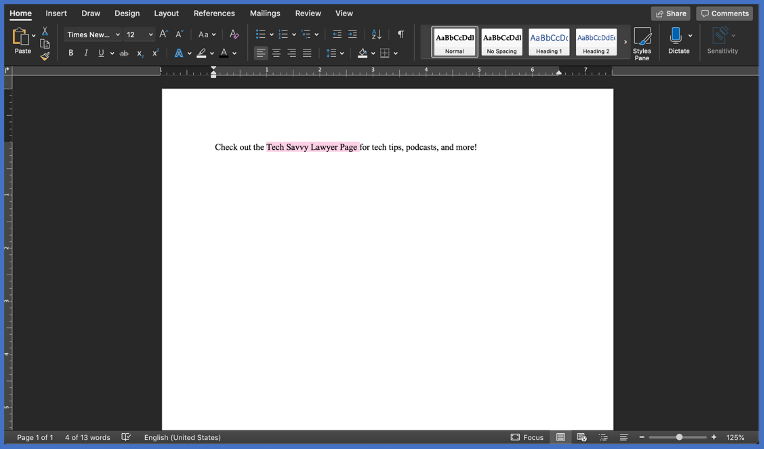
Steps 4 & 5: Open your Microsoft Word document, and with your cursor highlight the word or phrase you would like to attach the link to.
![Step 6: Summon the hyperlink function [Ctrl+K].](https://images.squarespace-cdn.com/content/v1/5c7f456c7eb88c5c90f4dd62/1584566166649-J4SVHZKUUJ7RZWDKKAI1/Picture4%2C+Link%2C+%28TSL.P%29.png)
Step 6: Summon the hyperlink function [Ctrl+K].
![Step 7: Paste the link into the box [Ctrl+V].](https://images.squarespace-cdn.com/content/v1/5c7f456c7eb88c5c90f4dd62/1584566232095-PDX6VKILO15N62T3UKYF/image-asset.png)
Step 7: Paste the link into the box [Ctrl+V].
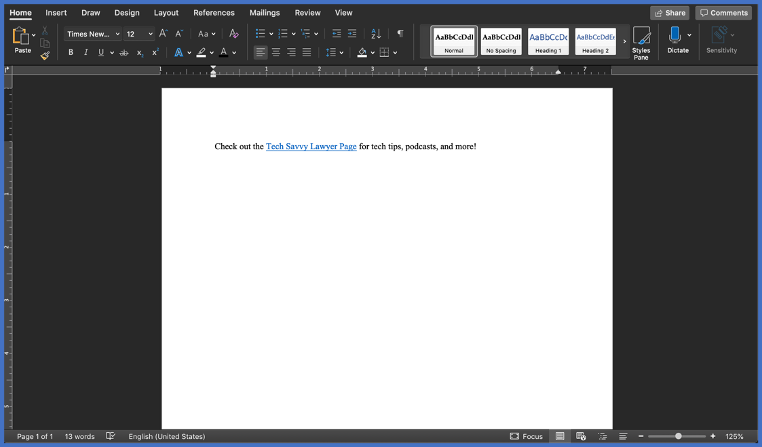
Step 8: Click Enter and Voila, you have embedded a hyperlink into your word document!
More and more people are working from home due to the Coronavirus/COVID-19 Issue. Judges, attorneys, and others in the legal profession who are not used to routinely working from HOME are understandably concerned about using their work tools free of contamination. Let’s not all panic, not accidentally break our laptops, and remember to use items best suited for your electronics.

Always good to wash your hand!
Coronavirus/COVID-19 or not!
Microfiber cloths are probably the best material to use to wipe down your laptop (especially your screen!).
You can slightly dampen your cloth with
Tap water,
Iodized water (a better pH balanced form of water that is less acidic. It is also alcohol-free. This may make it a better cleaner that just pure tap water); or
Liquid soap and water to wipe down your laptop and screen.
Remember, if your cloth is "dripping", you have too much water in the cloth!
Apple (and as it appears other laptop manufactures) are moving away from not using certain alcohol cleaners on their devices. Apple released the following statement:
"Using a 70 percent isopropyl alcohol wipe or Clorox Disinfecting Wipes, you may gently wipe the hard, nonporous surfaces of your Apple product, such as the display, keyboard, or other exterior surfaces. Don't use bleach. Avoid getting moisture in any opening, and don't submerge your Apple product in any cleaning agents. Don't use on fabric or leather surfaces."
https://support.apple.com/en-us/HT204172
Meanwhile, be careful about using compressed air. Blowing air into a laptop may remove some particles. Still, it may also blow them into your laptop and into the circuit board. That could lead to a broken laptop.
Stay safe, stay home if you are exposed, and stay productive!
I know there are a lot of sport’s fans, news’ junkies (like myself), and those who prefer to listen to their favorite local radio station or type of music but may not be able to do so while on the road. TuneIn Radio App scratches that itch. There a lot of sport’s channels to choose from - including league stations and some ESPN channels. Plenty of news’ channels, including CNN, Fox News Talk, and MSNBC and podcasts of your favorite evening news shows! The list of local stations is limited, but it does offer a variety of genres of music. Given everything I listen to, the free app is perfect!

I think for most users, you will find the free app just fine. The Premium service removes a lot of their commercials and gives access to more sport’s status. Download the app for free on your Google Android or iTunes enabled device and start listening anywhere you have an internet connection. It’s the perfect companion at home, work, or on travels!
Enjoy!
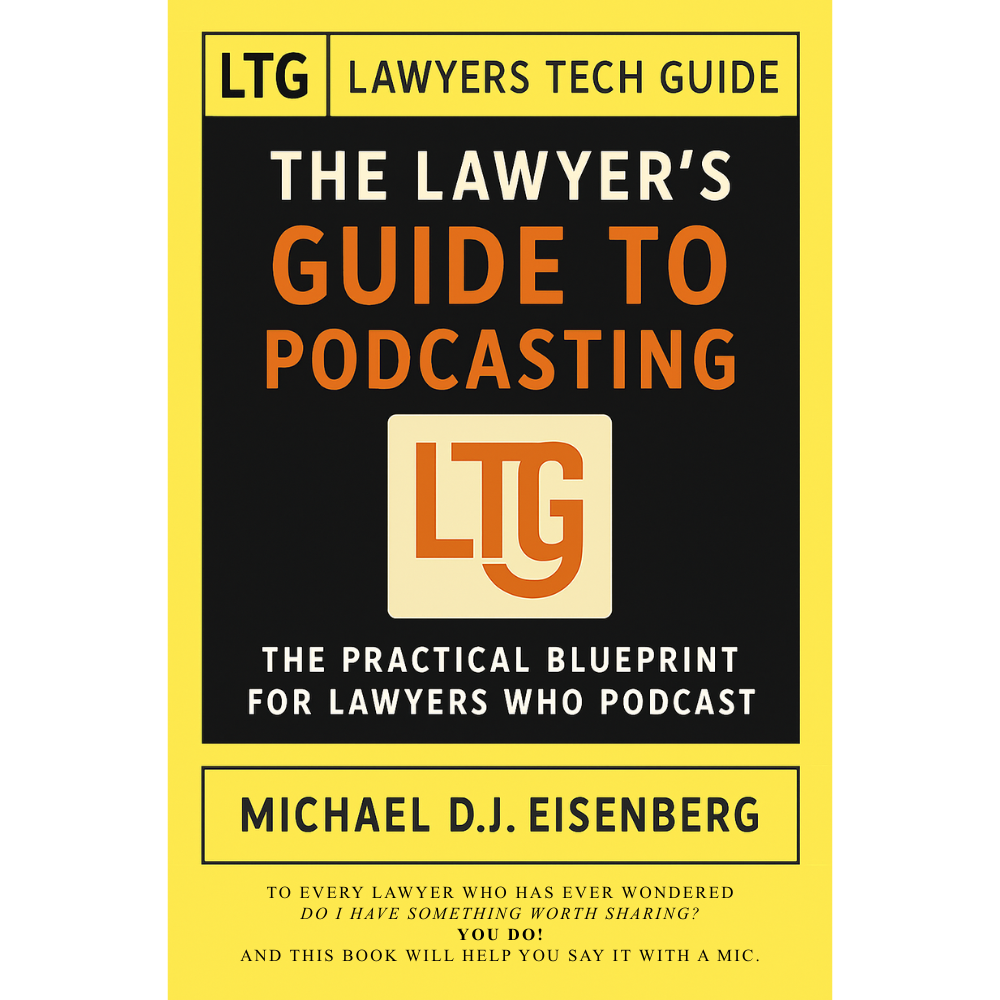






MICHAEL D.J. EISENBERG IS A WASHINGTON, DC LEGAL PROFESSIONAL WHO LOVES HIS TECH.

I've spent decades helping lawyers—young and old—tackle their tech challenges. Now, I’m bringing that knowledge to a broader audience with this blog. My posts are inspired by real questions I’ve been asked and the trends shaping the future.
Whether you're a tech novice or a pro, you'll find practical insights here to streamline your legal practice and improve your daily life. Let’s make technology work for you, not against you. 😀
The Tech‑Savvy Lawyer.Page blog and podcast are for informational and educational purposes only. The content reflects the insights and opinions of a legal professional with extensive experience in law and technology. Nothing published on this site or shared through the podcast should be construed as legal advice, nor does it create any attorney‑client relationship.
Readers and listeners should consult a licensed attorney for legal advice tailored to their specific circumstances. References to software, services, or products are provided for discussion purposes only and do not constitute endorsements, guarantees, or warranties.
As required by the IRS and FTC, please note that this blog and podcast may include affiliate links. The Tech‑Savvy Lawyer.Page may earn a commission from qualifying purchases or referrals, at no additional cost to you.


