How to Use Google’s “AirDrop for Android” (Quick Share) in Your Law Practice 🔁📱

* Image generated with google notebook llm

Lawyers, if your practice runs on a mix of iPhones, Android phones, and maybe a Chromebook or two, Google’s latest update to Quick Share—the Android equivalent of AirDrop—just made your day a lot easier. 💼📲 Google has expanded AirDrop‑compatible Quick Share support to a wider range of Android devices, including recent Samsung Galaxy, Google Pixel, and flagship models from HONOR, OnePlus, Xiaomi, OPPO, and Vivo.

For solo and small‑firm lawyers, this is more than a gadget story; it is a practical way to move client files securely between phones, tablets, and laptops without emailing yourself documents or juggling USB drives. Quick Share now lets compatible Android devices exchange files with Apple’s AirDrop, creating a true cross‑platform bridge. That means the associate on a Pixel can send a photo or PDF directly to the partner’s iPhone in seconds.

Below is a step‑by‑step guide to turning this new capability into a daily productivity tool that still respects your ethical duties under the ABA Model Rules.

1. What Exactly Did Google Change?

Quick Share started as Google and Samsung’s unified wireless sharing standard, replacing the older “Nearby Share” branding. At Consumer Electronics Show (CES) 2024, Google announced that Quick Share would become the default peer‑to‑peer sharing solution across Android and Chromebooks. In late 2025, Google went a step further and made Quick Share interoperable with Apple’s AirDrop, enabling two‑way file sharing between compatible Android devices and iPhones.

Now, Google is expanding that interoperability to a broader list of devices, including: recent Samsung S‑series phones (S24, S25, S26 lines and Z‑foldables), new Pixel models (8a, 9, 10 families), and flagship devices from HONOR, OnePlus, Xiaomi, OPPO, and Vivo. More support is on the way for newer foldables like Motorola Razr Fold 2026 and additional OPPO and HONOR models. If you or your staff have upgraded phones in the last year or two, there is a good chance you already have Quick Share—or will soon via an update.

From a security standpoint, Google says Quick Share uses direct peer‑to‑peer connections (not routed through Google servers) and does not log extra data about your transfers. That matters when you are thinking about confidentiality under Model Rule 1.6.

2. Check Whether Your Devices Support Quick Share

Before you design new workflows around this feature, verify that your devices are eligible. 🔍

On Android (for attorneys and staff using Android handsets):

  • Confirm device model: Check if you have one of the supported Samsung Galaxy S24/S25/S26 or Z‑series devices, a recent Pixel (8a, 9, 10 series), or listed flagships from HONOR, OnePlus, Xiaomi, OPPO, or Vivo.

  • Check for updates: Install the latest Android and Google Play system updates; Quick Share is rolling out via updates to devices that previously supported Nearby Share.

  • Look for “Quick Share”: In your Quick Settings shade or system sharing menu, look for a “Quick Share” option or icon.

On iPhone (for attorneys and staff in the Apple camp):

  • Make sure you are running a recent iOS version that supports the latest AirDrop enhancements.

  • In Settings → General → AirDrop, confirm AirDrop is enabled and decide who can send you items (Contacts Only, Everyone for 10 Minutes, etc.).

3. How to Send Files Between Android and iPhone Using Quick Share

Once you confirm compatibility, the actual workflow is refreshingly simple. ⚙️

On the Android device (sender):

  1. Open the item you want to send—a PDF of a brief, an image of a whiteboard from a strategy session, or a short video walkthrough for a client.

  2. Tap the system Share button.

  3. Choose Quick Share from the list of options.

  4. Let your phone scan for nearby devices. You should see the nearby iPhone as an available target when AirDrop is configured to accept transfers.

  5. Tap the iPhone, and accept the transfer on the iOS side. The file arrives in the appropriate app (e.g., Photos for images, Files for documents).

On the iPhone (sender) going to Android:

  1. Open the file, tap the Share sheet, then choose AirDrop.

  2. When a compatible Quick Share‑enabled Android device is nearby, it appears as a target.

  3. Tap the device name, and the Android user confirms receipt.

This is perfect for in‑person collaboration: passing a draft from your phone to a colleague’s device in a conference room, or sharing an exhibit photo to co‑counsel during a strategy session. It avoids the friction of email attachments, and it is far less clumsy than texting large files. 💡

4. Using Quick Share in Real‑World Law Practice Scenarios

Here are a few ways solo and small‑firm attorneys can turn this into real value:

  • Internal handoffs in the office: Capture a photo of a signed retainer or a handwritten note and send it directly from your Android to the firm’s iPhone‑based intake coordinator. ⚖️

  • Cross‑platform trial prep: Your trial tech might run on an Android tablet while you live on an iPhone. Quick Share lets you pass last‑minute demonstratives and call‑out graphics back and forth without cables.

  • On‑the‑go collaboration with co‑counsel: Meeting co‑counsel at court and you have the latest marked‑up PDF on your Pixel? You can send it directly to their iPhone via Quick Share/AirDrop in seconds.

  • Client education materials: In an in‑person meeting, you can hand a client a short “What Happens Next” explainer PDF and send it straight to their device, regardless of whether they are using Android or iOS.

5. Ethics, Confidentiality, and ABA Model Rules

Convenience is good; compliance is mandatory. ⚠️

Under ABA Model Rule 1.1 (Competence) and Comment 8, lawyers must keep abreast of the benefits and risks associated with relevant technology. Using Quick Share and AirDrop without understanding the privacy controls can be a competence issue, not a convenience issue.

Under Model Rule 1.6 (Confidentiality of Information), you must take reasonable steps to safeguard client information. With Quick Share and AirDrop, “reasonable steps” include:

  • Confirming you are sharing to the correct device name before sending.

  • Avoiding use of “Everyone” or “Everyone for 10 Minutes” AirDrop settings in crowded public spaces where unsolicited files could be sent or misdirected.

  • Reviewing whether client‑sensitive materials should be encrypted or confined to your secure document system, with Quick Share used only for lower‑risk items or internal use.

Model Rule 5.3 (Responsibilities Regarding Nonlawyer Assistance) also applies. If staff use their personal Android or iPhone devices, you must ensure that their use of Quick Share/AirDrop complies with your confidentiality and information‑security policies. A short, written BYOD policy describing when and how Quick Share/AirDrop may be used helps show that you exercised appropriate oversight.

Finally, Quick Share’s peer‑to‑peer design—avoiding server routing and additional logging—is helpful but not a substitute for firm policy. You still need to set expectations around device locking, lost phones, and remote‑wipe capabilities.

6. Practical Security Settings You Should Enable

To use this new capability responsibly, spend 10–15 minutes hardening your settings. 🔐

On Android:

  • Change Quick Share visibility to “Contacts” or “Hidden” by default unless you are in a trusted, controlled setting.

  • Require device unlock to accept incoming transfers where possible.

  • Tie your usage to secure apps: once a file arrives, move it into your document management system or encrypted storage rather than leaving it in a general Downloads folder.

On iPhone:

  • Set AirDrop to “Contacts Only” as your default; use “Everyone for 10 Minutes” only when necessary, in a controlled context.

  • Educate staff to decline unexpected AirDrop requests, especially in public.

Across both platforms, document this in a simple technology policy and training memo. That way, when your state bar issues an opinion on mobile file‑sharing, you are already ahead of the curve.

7. Roll This Out in Your Firm: A Simple Checklist

To wrap this into your practice, you can follow a straightforward rollout plan:

  1. Inventory devices: List who uses Android and who uses iPhone, and which models they have.

  2. Update everything: Make sure all phones have current OS and security updates, which often contain Quick Share/AirDrop enhancements.

  3. Set default privacy options: Configure AirDrop/Quick Share defaults as part of your firm’s mobile device setup checklist.

  4. Train your team: Hold a 30‑minute lunch‑and‑learn and physically walk through sending sample files between Android and iPhone devices.

  5. Define use cases: Decide what types of files are appropriate for direct device‑to‑device sharing and which must go through your DMS or secure client portal.

Follow The Tech‑Savvy Lawyer for more tips, important discussions, and insights on using technology to improve your services to your clients and recapture time for yourself while maintaining bar compliance!

My Two Cents: Lawyers considering the switch from Windows to Apple computers should take advantage of Apple's Holiday Season Return Policy!

Apple v. Windows: Which one is best for you?

Although The Tech-Savvy Lawyer.Page covers both Windows and Apple hardware and software; there is no secret I am an unabashed Apple enthusiast! For those of you who are or have been considering the switch, now may be a great time to do it!  Apple has started its Holiday Season Return window!

The way the general return program has worked previously is if you bought an Apple product, you could return it within two weeks with no (reasonable) questions asked!  Now, with this🎄🍎 Holiday Program🎄🍎, any purchase "received between November 3, 2023 and December 25, 2023, may be returned through January 8, 2024". This should give you plenty of time to try an Apple computer, iPad, or iPhone.  But if you find your Apple purchase doesn't fulfill your needs, you can return your purchase hassle-free within the designated return period.

For those of you who wonder why you should consider switching to Apple, 🤔 here are some compelling reasons tailored specifically to lawyers like us:

🍎 Unparalleled Performance: Apple computers are known for their exceptional speed. The new silicon chips are running blazing fast and are putting Intel chips to the test!
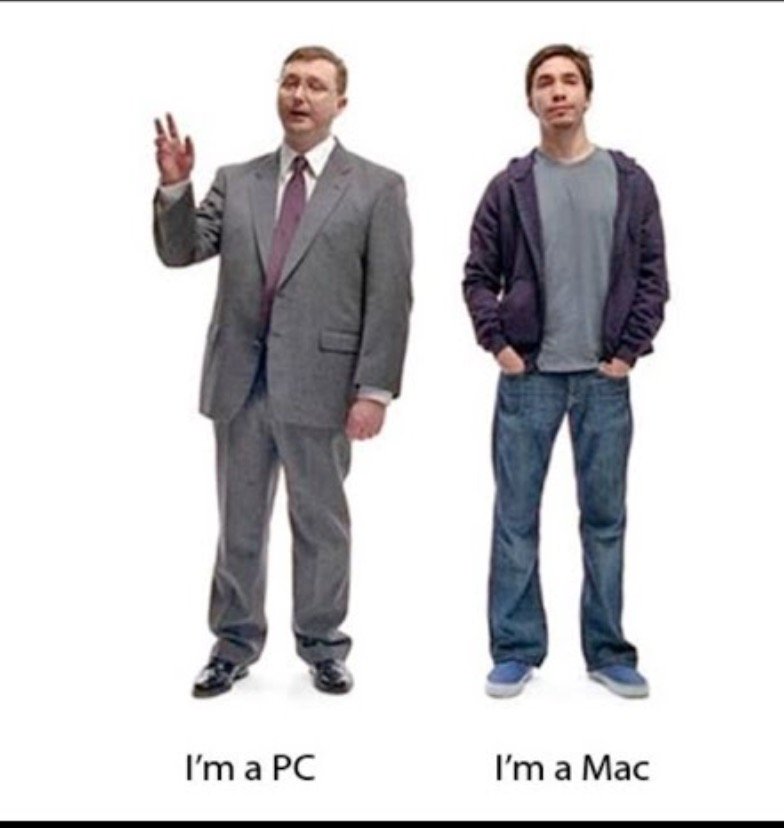
“I’m a mac v. i’m a pc” commercials!

🍎 Reliability: Remember the old Apple versus Windows commercials?  They just work! Say goodbye to frustrating delays, and hello to a seamless workflow!

🍎 Durability: There are reports that although you may be paying more upfront, Apple products tend to have a long lifespan with little need for repair, i.e., lower total cost of ownership (TCO).  And now that you can get repair service for select products on an unlimited basis (monthly for the time you own your product), you start ownership worry-free of any potential repair issues. The resale value of a Mac usually outpaces that of a Windows’ machine.

🍎 Enhanced Security: As legal professionals, we handle sensitive client information, making security a top priority. Apple's robust security features and built-in encryption help protect your data from potential threats, providing you with peace of mind. Although Apple OS is not immune to viruses, Windows OS tend to be the bigger target of hackers and malware attackers.

🍎 Seamless Integration: If you are already an iPhone or iPad user, switching to Apple computers will create a seamless integration within your ecosystem. Access your files, messages, and important information across devices effortlessly.

🍎 User-Friendly Interface: Apple's intuitive interface makes it easy to navigate through applications and perform tasks efficiently, saving you valuable time that can be better spent on serving your clients. Granted, it may be different than Windows, but they both work on a similar graphical user interface of a mouse and pointer to navigate through the files, folders, and applications. Apple offers a variety of free get-to-know-your-Apple product sessions where you can learn some of these nuances.  Or you could always ask your friendly "Tech-Savvy Lawyer!"

Go to your nearby apple store or authorized retailer to see what could be your firm’s next tech investment!

To take advantage of Apple's holiday season return policy, simply visit your nearest Apple Store or their online store, make your purchase, and experience the incredible benefits of using Apple products for yourself. Remember to keep your receipt and adhere to their designated return period for a stress-free return, if needed.

Don't miss out on this fantastic opportunity to upgrade your legal practice and join the ever-growing community of satisfied Apple users like this Tech-Savvy Lawyer! 🙌💼

PS:  I was not paid by Apple or its affiliates for this post.

#AppleHolidaySeasonReturn #UpgradeYourLawFirm #SwitchToApple #thetechsavvylawyer
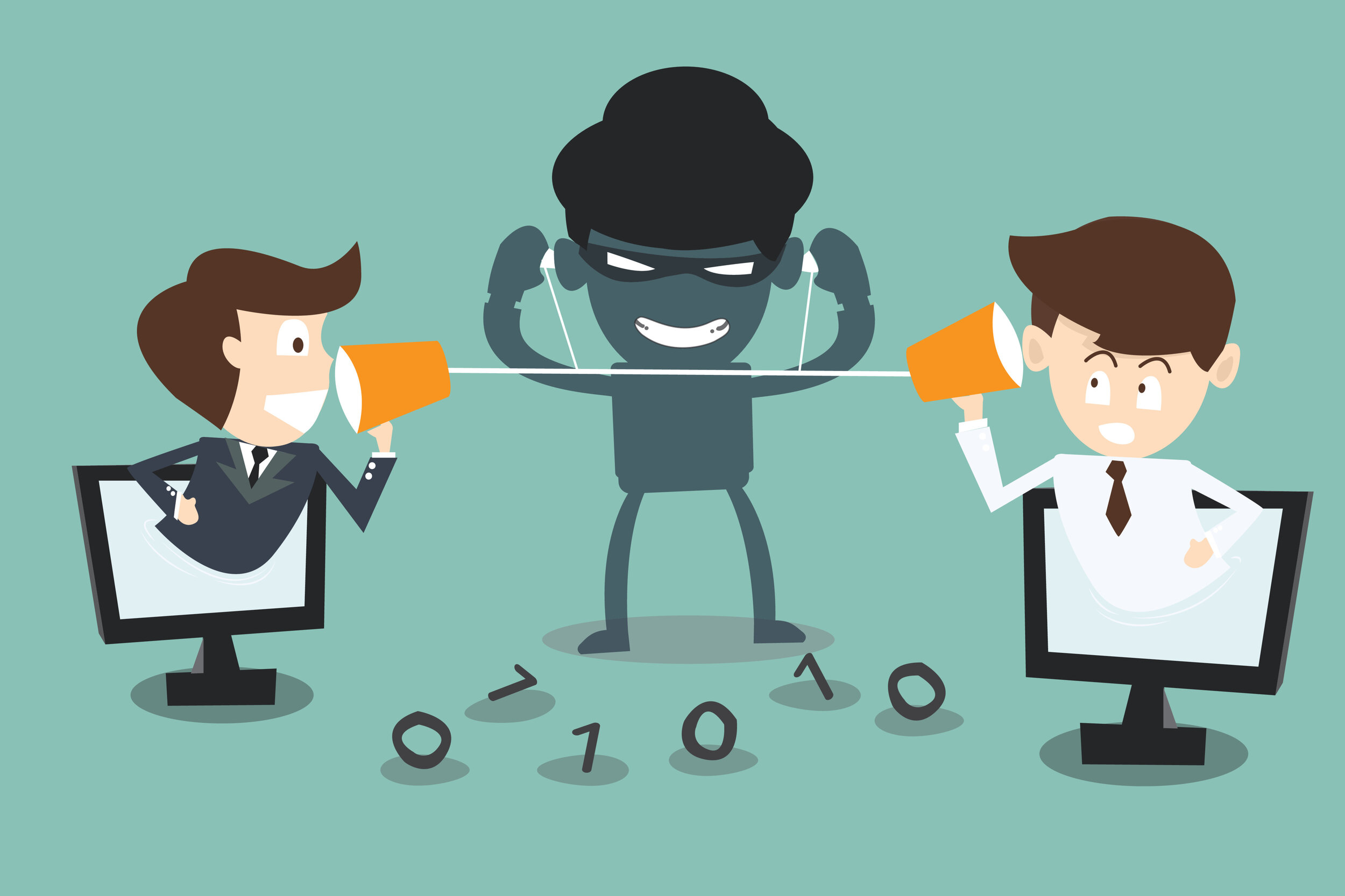
Sound Quality versus Privacy – What is more important to a lawyer in a smart speaker?

AdobeStock_65087730.jpeg

Sound Quality versus Privacy – What is more important to a lawyer in a smart speaker?

MacRumors came out with an article comparing the mini-smart speakers currently on the market.  The candidates are the Amazon's Echo, Apple’s Homepod mini and Google's Nest Audio. They all retail for about $99.  It looks like hands down the Echo and Nest beat the Homepod-mini for quality and depth of music.

The audio specs break down:

  • Echo: 76mm woofer and two 20mm tweeters.

  • ‌HomePod mini‌: Full range driver and dual passive radiators.

  • Nest Audio: 75mm woofer and one 19mm tweeter.

BUT IS SOUND QUALITY WORTH THE TRUE “COST” OF THE DEVICE:

Certainly, if you are vested in the Amazon Alexa or Google Assistant platforms, I can see the draw to remain in the respective platforms’ microverse.  But sound quality and smart-assistant integration are not THE major concern for attorneys – It’s Privacy!

Amazon Alex and Google Assistant do not have a great reputation for protecting your privacyApple Homepods have had its share of fairly recent problems too!  But Apple’s Siri is more active in protecting your privacy.  The inherency of its “sandboxed” software makes it more likely prying eyes 👀 (or in this case ears 👂🦻!) will not be obtaining your private or your client’s confidential information!

PROFESSIONAL RESPONSIBILITY ALERT!
Remember, the Model Rules of Professional Conduct require you have to be both competent in your use of technology in your office Rule 1.1 [8] and take reasonable efforts to ensure your client’s information is protected, Rule 1.6 (c).

Granted, I am a Mac user in my private practice.  So, I would naturally gravitate toward Homepods.  But I do use Windows machines when it comes to the blog.  And IMHO the overall risk right now in buying an Amazon Alexa or Google Assistant is just not worth risk – even with the discounts you may be finding on Amazon!

MTC

Happy Lawyering!!!