
How To: What Lawyers Should Factor When They Buy Their Next Computer in the 2026 AI Hardware Crunch 💻⚖️
/
Lawyers need to plan hardware upgrade to be AI-ready law office setup
If you feel like every new Windows laptop or Mac has jumped a tax bracket this year, you’re not imagining it. Between the AI hardware crunch driving up RAM prices, trade and shipping disruptions (including Suez‑related delays), and ongoing volatility in the stock and component markets, 2026 is a uniquely challenging time to buy a desktop, laptop, or tablet for your practice.
On The Tech-Savvy Lawyer.Page, we’ve been warning for months that this is not a normal refresh cycle: AI data centers are soaking up advanced memory production, leaving law firms to compete for pricier machines on both Windows and Apple platforms. The good news is that you don’t need a gamer’s rig or a data center budget. You do, however, need a plan that’s grounded in how you actually practice law and in your ethical duties under ABA Model Rule 1.1 (competence) and 1.6 (confidentiality).
This guide is an informative roadmap—not legal advice and not a guarantee that you’ll pick the perfect device. It’s designed to help solo practitioners, small-firm lawyers, and AI‑curious professionals make smart, defensible choices in a turbulent market
1. Start with your actual work (not the brochure) 🧠
Before you look at brands or prices, describe your day-to-day work in concrete terms:
✅ How much time do you spend in Word, email, and PDFs versus video hearings or presentations?
✅ Are you using (or planning to use) AI tools for drafting, summarizing, or discovery triage?
✅ Do you run practice management, billing, and research platforms all at once?
In The Tech-Savvy Lawyer blog’s articles covering the AI hardware crunch, e.g., MTC: Why Rising PC and AI Tool Prices (for Windows and Apple) Should Be on Every Lawyer’s Radar in 2026, we’ve emphasized that law practice technology is now a core part of competence, not an optional luxury. Under Model Rule 1.1’s technology comment, you’re expected to keep abreast of “benefits and risks associated with relevant technology,” which in 2026 includes the practical limits of your hardware.
If your current machine labors through simple tasks like three browser windows, your case‑management system, and Zoom, you’re operating below what I call “competence‑grade hardware.” It’s time to upgrade.
2. Pick your form factor: desktop, laptop, or tablet? 🖥️💻📱

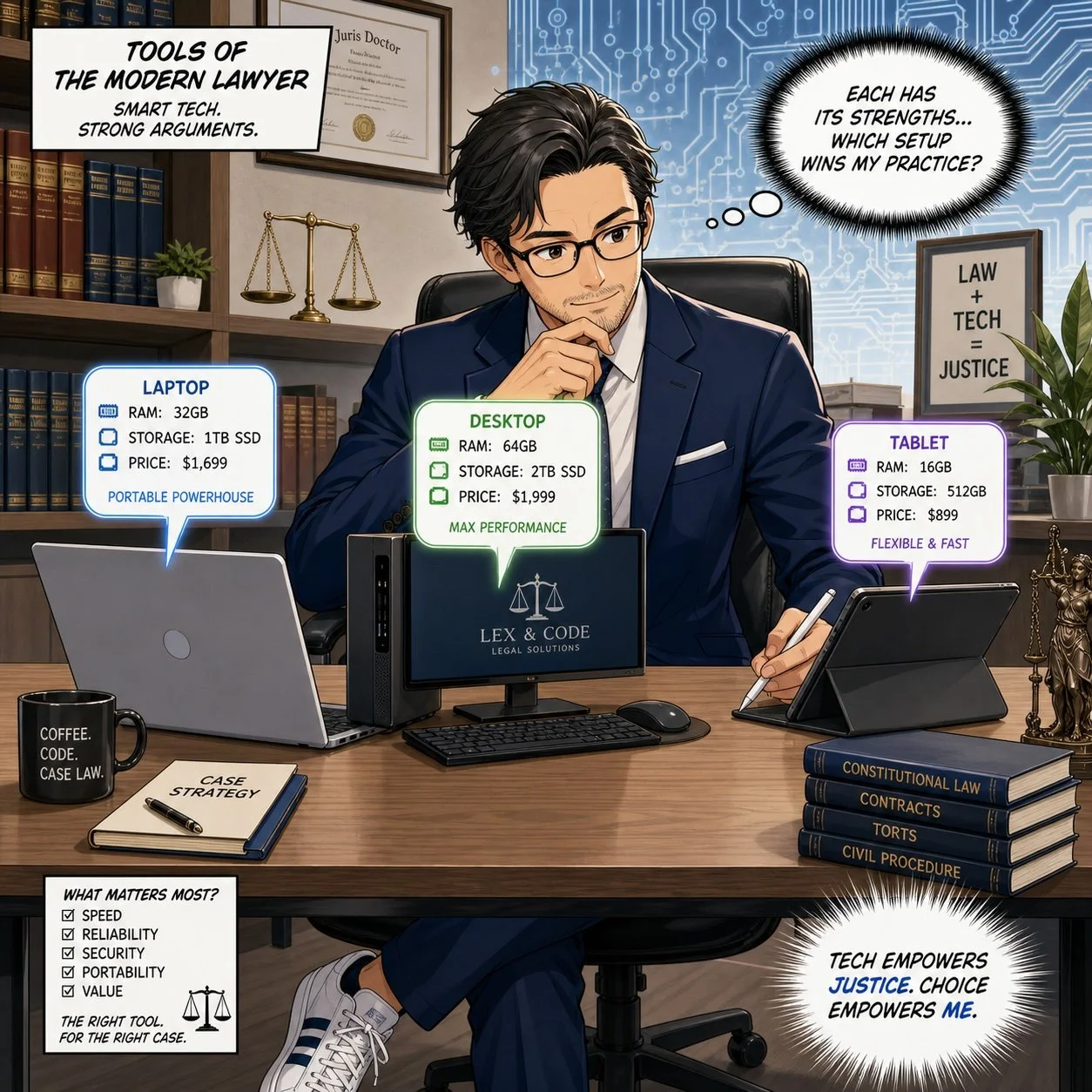
Lawyers need to evaluate desktop, laptop, tablet specs to make their own AI efficient law practice.
Your next step is deciding where and how you work:
Desktop: Best for performance per dollar, ergonomics, and long‑term upgradability. Great for lawyers who spend most of their time at a single desk.
Laptop: Best for mobility—court, home office, client sites, and travel. This is often the primary machine for solos and small‑firm litigators.
Tablet/2‑in‑1: Best as a secondary device for hearings, note‑taking, and email triage, not as your main drafting and research tool.
In the December 2025 “hardware hike” editorial and the June 2026 follow‑up on rising PC and AI tool prices, I argued that law firms should treat desktops and laptops on both Windows and Mac as shared infrastructure, not just personal preference devices. Desktops remain easier to upgrade (RAM and storage), which is valuable in an era when AI workloads continually push spec requirements upward.
If you live in court, depositions, or multiple offices, you’ll likely get more value from a well-specced laptop plus an external monitor in your main workspace. If you are primarily office‑bound, a solid desktop plus a lighter laptop or tablet for mobility can provide the best mix of power and flexibility.
3. Understand the key specs in plain English 📊
Here’s how to think about the main specs as a lawyer, not a hardware engineer:
Processor (CPU) — the “brain”
The CPU is the brain of the computer. It determines how smoothly your machine can juggle tasks like Word, Outlook, your practice management system, Zoom, and AI tools. A current‑generation mid‑tier CPU (e.g., Intel i5/i7, AMD Ryzen 5/7, or recent Apple Silicon M4/M5 series) is usually the right balance for most lawyers.
If your computer freezes when you launch a few apps and share your screen in court, that’s a CPU bottleneck. A stronger “brain” improves day‑to‑day responsiveness and helps you stay diligent under Model Rule 1.3—because you’re not waiting for the system every time you need to act.
Memory (RAM) — your working desk
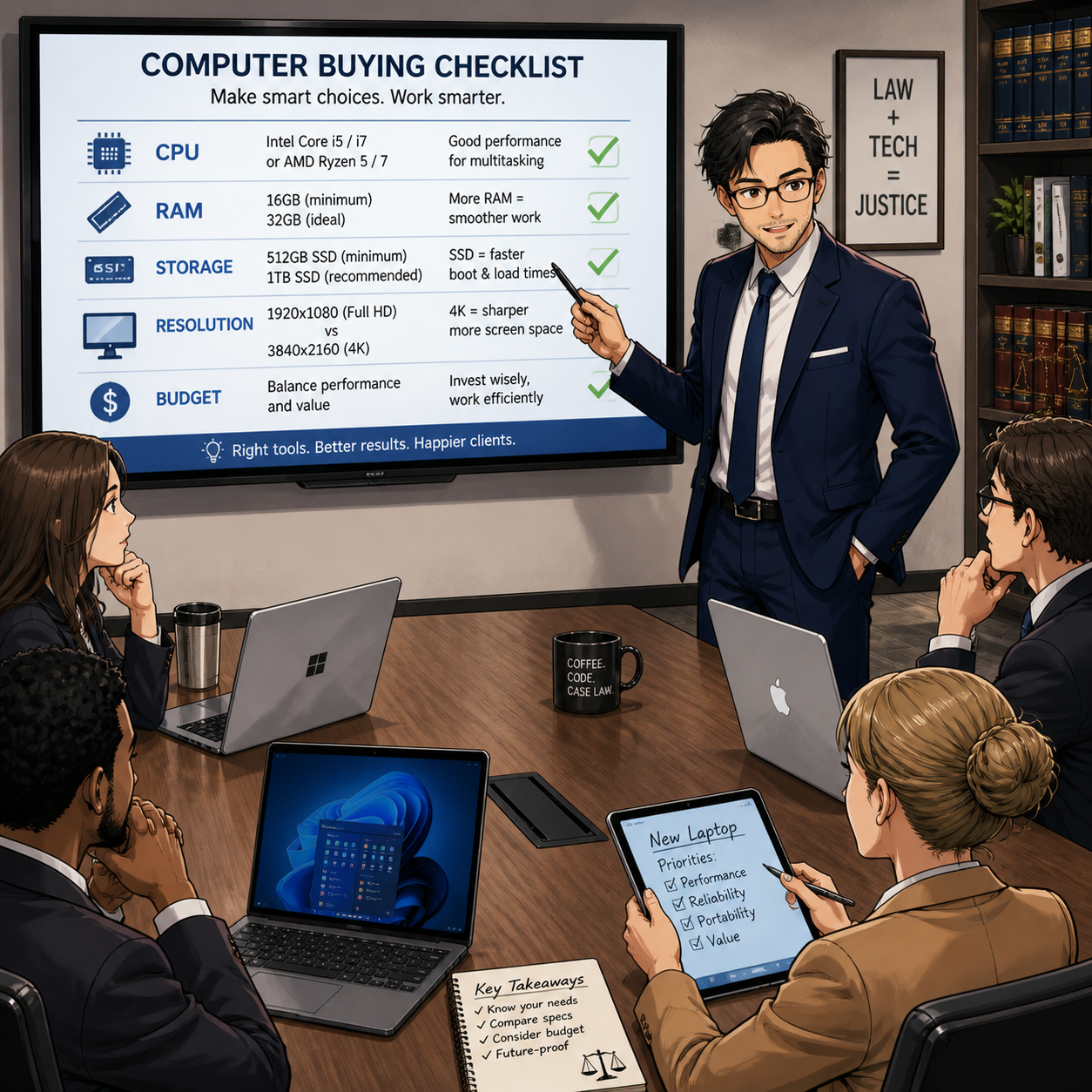
Lawyers need to discuss RAM, SSD, display specs for 2026 hardware crunch.
RAM is short‑term working memory—the size of the “desk” where the computer lays out everything it’s actively using.
More RAM = more programs and browser tabs open without slowdowns.
Too little RAM forces the system to shuffle data in and out of storage constantly, which feels like lag or “thinking hard” before every click.
In 2026, with heavier browsers, AI tools, and richer web apps, 16 GB of RAM is a realistic minimum for a primary practice machine. Eight gigabytes now belong in the “secondary machine” category—fine for occasional tasks but not ideal for your main law office computer. * Although if you are going to use your secondary machine to run some AI bots in the background, you’ll want more than 16 GB of RAM.
(Internal) Storage (SSD size) — your filing cabinet
Storage is the long‑term filing cabinet: the space for all documents, scanned PDFs, discovery data, email archives, and applications. Modern machines use SSDs (solid‑state drives), which are much faster than old spinning drives.
For a typical solo or small firm, I recommend:
512 GB SSD as a baseline if most of your documents live in the cloud but you keep active matter files locally.
1 TB SSD if you regularly work with large discovery productions, video, or heavy local archives.
This sizing meshes well with ethical guidance on backups and redundancy: sufficient local storage makes it easier to maintain secure copies of critical matter files as part of your broader tech and risk strategy.
💡 Tip: If you don’t need to keep old client files, e.g., former clients/closed cases, then you may want to move them off the main computer’s internal drive and store them on an external drive to free up room. Just make sure you have copies or backups of these files.
Display resolution — why 1920×1080 is your baseline
Resolution describes how many pixels, or tiny dots, make up your screen image. The common 1920×1080 figure means:
1920 pixels across (horizontal)
1080 pixels down (vertical)
This is known as Full HD (1080p) and sits near what marketing folks call “2K” because it’s close to 2,000 pixels across.
Rough mapping:
“1K” – not a formal standard, sometimes used loosely for older, lower resolutions around 1,000 pixels wide.
1080p / Full HD (1920×1080) – effectively in the 2K family; a very solid baseline for legal work.
2K/QHD (around 2560×1440) – more pixels, sharper image, and more on‑screen workspace.
4K/UHD (3840×2160) – roughly four times the total pixels of 1080p; extremely detailed but can make text small unless scaled up.
For most lawyers, 1920×1080 on a 24–27″ monitor is the sweet spot: it offers clear text, plenty of room for side‑by‑side documents and doesn’t create scaling headaches. Higher resolutions are great if you’re comfortable tweaking font and scaling settings, but they’re not mandatory for competent practice.
DPI/PPI — why it matters if you read all day
Lawyers read—constantly. DPI (dots per inch) and PPI (pixels per inch) measure how densely those pixels are packed on the screen.

Lawyers need to consider cpu, RAM, SSD, display specs and budge during the 2026 hardware crunch.
Higher PPI/DPI = sharper text and smoother lines, like reading a casebook with crisp printing.
Lower PPI/DPI = slightly jagged or fuzzy edges at small sizes, more like reading a faded photocopy.
If you spend long days in cases, statutes, and contracts, a display with good resolution and decent PPI reduces eye strain and fatigue. This is not just comfort—it supports sustained competence and productivity, which tie directly into your ethical duties to represent clients diligently and effectively under Rules 1.1 and 1.3.
4. Budget with the AI hardware crunch in mind 💸
On The Tech-Savvy Lawyer.Page, we’ve discussed computer hardware price increases of roughly 15–20% for 2026 PCs and laptops, with memory costs as the biggest driver. AI data centers, tariffs, and supply disruptions all contribute to higher prices and fewer “bargain” mid‑range machines.
Practical guidance:
For a primary practice machine, aim for mid‑ to upper‑mid‑range pricing that delivers competence‑grade specs (CPU, 16 GB RAM, SSD, Full HD or better display).
Don’t sacrifice baseline hardware just to keep optional subscriptions—cut redundant SaaS and AI tools before you under‑spec your main computer.
Treat this as part of your technology competence plan. A documented decision process that ties hardware specs to ABA Model Rules 1.1 and 1.6 (including security features like encryption and secure boot) shows you approached your choice thoughtfully.
Power Tip 💡: I’m going to share something that may not be popular with the cost-conscious – buy more than you need. My rule of thumb has been to buy 2x as much as you need. For example, if you know your firm’s files, applications, and operating system will take up 1 TB of hard drive space, get 2 TB. If you know that your system and programs can run comfortably on 16 GB of RAM, get 32 GB. You always want your machines to be humming along. You don’t want to be struggling to the finish line when you're only halfway through your computer’s planned lifecycle!
5. Mobility vs. sedentary practice 🚶♂️🪑
Your mobility profile should guide not just form factor, but accessories and support:
Mostly in one office – prioritize a robust desktop, ergonomic monitor(s), and reliable backup plus a modest laptop or tablet for remote hearings.
Highly mobile – invest in a competence‑grade laptop with docking at your main location, plus secure remote access tools.
On The Tech-Savvy Lawyer podcast and blog, we’ve repeatedly seen that “half‑mobile” lawyers—those who sometimes work elsewhere but own only a weak travel machine—are the ones who struggle most under pressure. Mobility is not just where the computer sits; it’s whether you can work securely and effectively wherever the case takes you.
Model Rules 1.6 and 5.3 also mean you must consider how you’ll protect client data in transit: encryption, password managers, secure Wi‑Fi practices, and coordinated policies with staff and vendors.
6. Longevity and lifecycle ⏳

don’t be that lawyer, upgrade your outdated desktop to competence-grade workstation specs.
Finally, we need to talk about lifecycle, not just purchase price. In recent Tech-Savvy Lawyer pieces, I’ve recommended a 3–5 year refresh cycle for primary laptops and desktops, adjusted for OS support timelines and security commitments.
For solos and small firms:
Buy machines that can reasonably support your core stack (PM, billing, research, AI tools) for at least 3–5 years.
Document your refresh policy so you’re not reacting only when something fails.
Treat hardware upgrades as part of your ethics and risk‑management plan, not just overhead.
In a volatile market, longevity is your hedge. A slightly higher upfront spend on competence‑grade hardware is often cheaper than cycling through underpowered machines every two years—and far better for your sanity and your clients. 😊
PS: It's ok to buy a new computer a little before your old one wears out; please, your old computer may serve as an emergency backup!