
How To: Redact PDF Documents Properly and Recover Data from Failed Redactions: A Guide for Lawyers After the DOJ Epstein Files Release “Leak”
/
Lawyers must redact documents correctly!
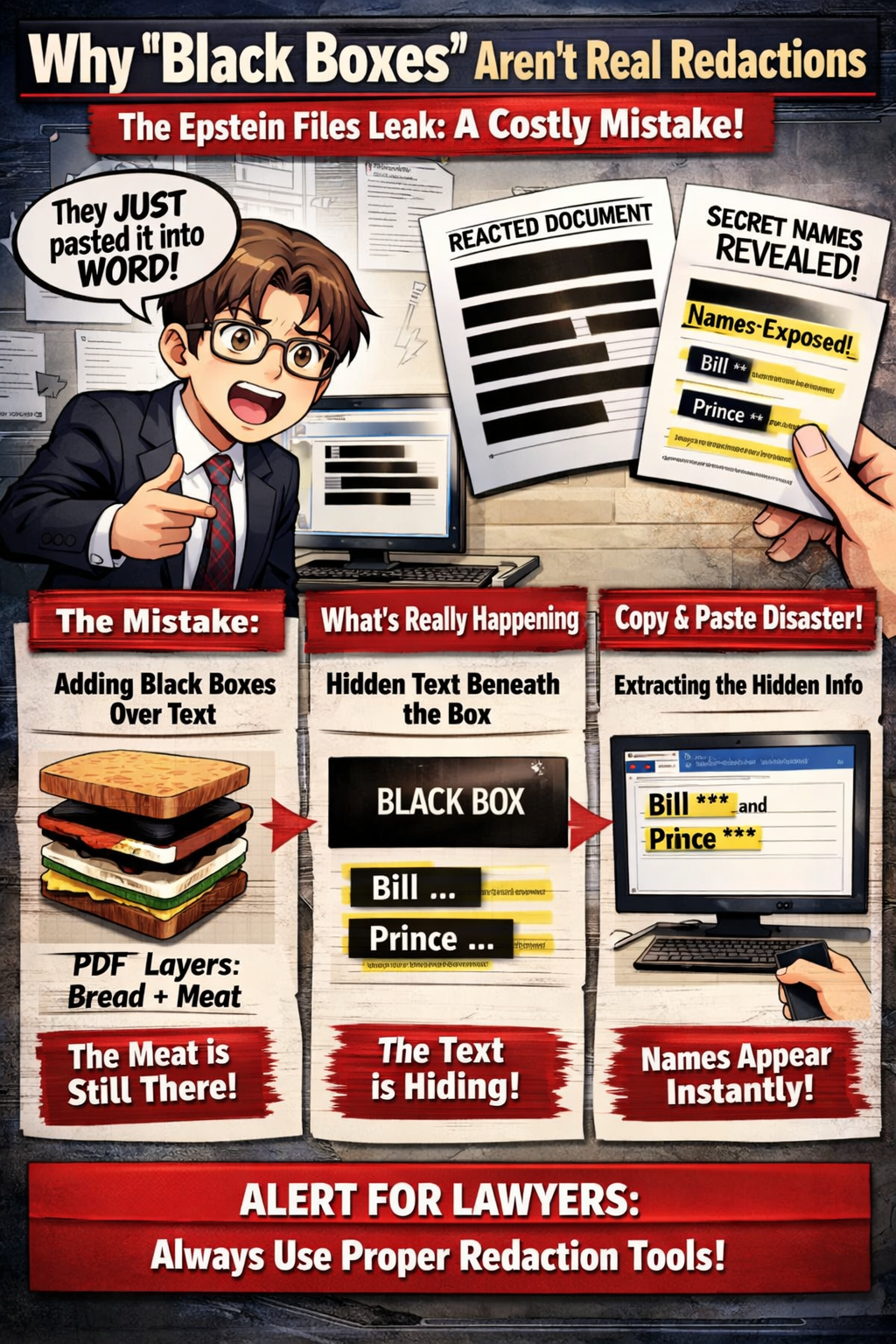
The legal world is buzzing this week. The Department of Justice released the Jeffrey Epstein files on December 23, 2025. The New York Times reported on the disaster in their article, https://www.nytimes.com/2025/12/23/us/politics/epstein-files-redactions-doj.html. The DOJ attempted to hide names. They failed. They used improper redaction techniques. Tech-savvy readers simply copied the text from under the black boxes. They pasted it into Word. The names appeared instantly.
This is a nightmare for any attorney. You never want to be the "sender" in this scenario. You also need to know what to do if you are the "receiver." This “How to” guide explains the technology. It also covers the ethics. We will keep it simple.
The Mistake: Why "Black Boxes" Are Not Redactions
Digital documents have layers. Think of a PDF like a sandwich. The text is the meat in the middle. The white background is the bread. When you use a drawing tool to place a black rectangle over a name, you are just adding a topping. You are putting a slice of cheese on top of the meat.
The meat is still there.
The computer still sees the text. It just displays a black shape over it. This is what happened with the DOJ files. They likely used a "highlighter" tool set to black. Or they used a "shape" tool. This hides the visual text. It does not remove the data.
How to Properly Redact Documents
lawyers do you know how to redact documents properly?
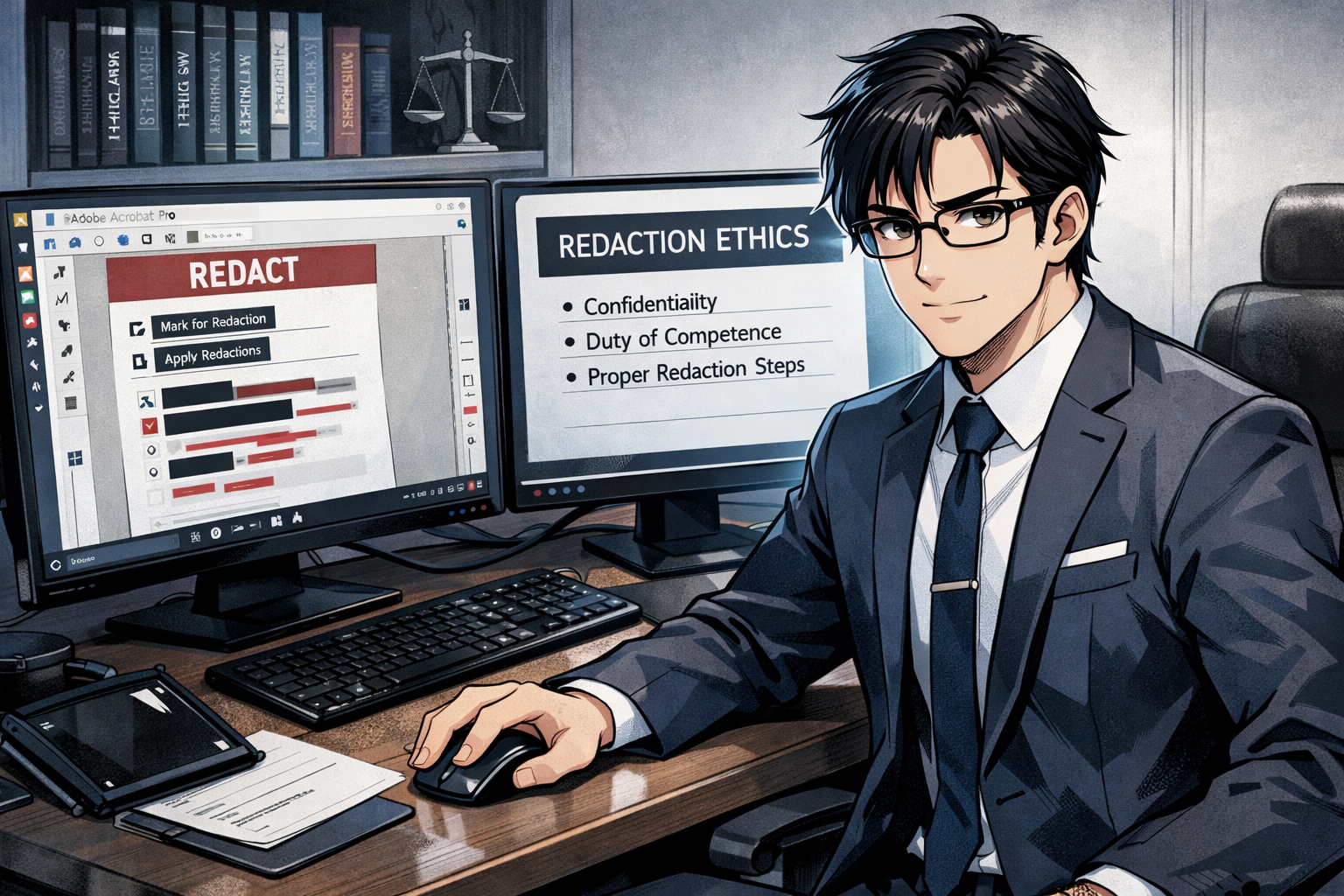
You must remove the data. You cannot just hide it. You need to burn the “meat” in the sandwich (you are creating a “hole” in the document). Here is the process for Adobe Acrobat Pro. Most legal PDF software works similarly.
1. Use the Dedicated Redact Tool
Do not use the "Comment" tool. Do not use the "Draw" tool. Look for the tool named "Redact." It is usually in the "Protect" or "Tools" menu.
2. Mark for Redaction
Select the text you want to hide. The tool will outline it in red. This is a warning. It tells you, "I am about to delete this." It has not happened yet. You can still undo it.
3. Apply the Redaction
This is the critical step. You must click "Apply." The software will warn you. It will say this cannot be undone. Confirm it. The software now punches a hole in the digital paper. It fills that hole with black pixels. The text data is gone.
4. Sanitize and Remove Hidden Information
You are not done. Files have metadata. This includes author names. It includes edit history. It includes bookmarks. Acrobat will ask if you want to "Remove Hidden Information." Always say yes. This scrubs the invisible layers.
5. Save as a New File
Save the file with a new name. Use a suffix like "_REDACTED." Keep your original safe. Open the new file. Try to select the black box. Try to search for the hidden word. If you cannot find it, you are safe.
How to Recover Information from Improperly Redacted Files
Sometimes you receive a file. It looks redacted. You suspect it was done poorly. Here is how you can check.
Method 1: The Copy and Paste Trick
This is the easiest method. It works on the DOJ files.
Open the PDF.
Press Ctrl + A (Windows) or Cmd + A (Mac). (Or with your cursor, highlight the document area in question.) This selects all text.
Look at the redacted area. If you see blue highlighting shadow behind the black box, the text is there.
Press Ctrl + C (Copy).
Open Microsoft Word.
Press Ctrl + V (Paste).
Read the text. The black box will likely disappear. The "hidden" words will appear.
Method 2: The Search Trick
Open the PDF.
Press Ctrl + F to open the search bar.
Type a word you think is redacted.
If the viewer jumps to a black box, the text is still there.
Method 3: Adobe "Remove Hidden Info" Check
Open the file in Acrobat Pro.
Go to the "Redact" tool.
Look for "Sanitize Document" or "Remove Hidden Information."
Run the scan.
The report will list "Hidden Text" or "Overlapping Objects." This confirms data is hiding behind the visuals.
The Ethics: ABA Model Rules
Technology is easy. Ethics are hard. What happens when you send a bad file? What happens when you receive one?
For the Sender (The DOJ Scenario)
You have a duty of competence. ABA Model Rule 1.1 and 1.1 Comment 8 require you to understand your tools. You must know how to redact. Failing to use the software correctly is a competence failure.
You also have a duty of confidentiality. ABA Model Rule 1.6 requires you to protect client info. Sending a "masked" PDF instead of a "redacted" one violates this duty. It is a breach. You effectively handed the other side the keys to the safe.
For the Receiver (The Attorney Who Finds the Info)
You received the Epstein files. You copy-pasted. You found the names. Now what?
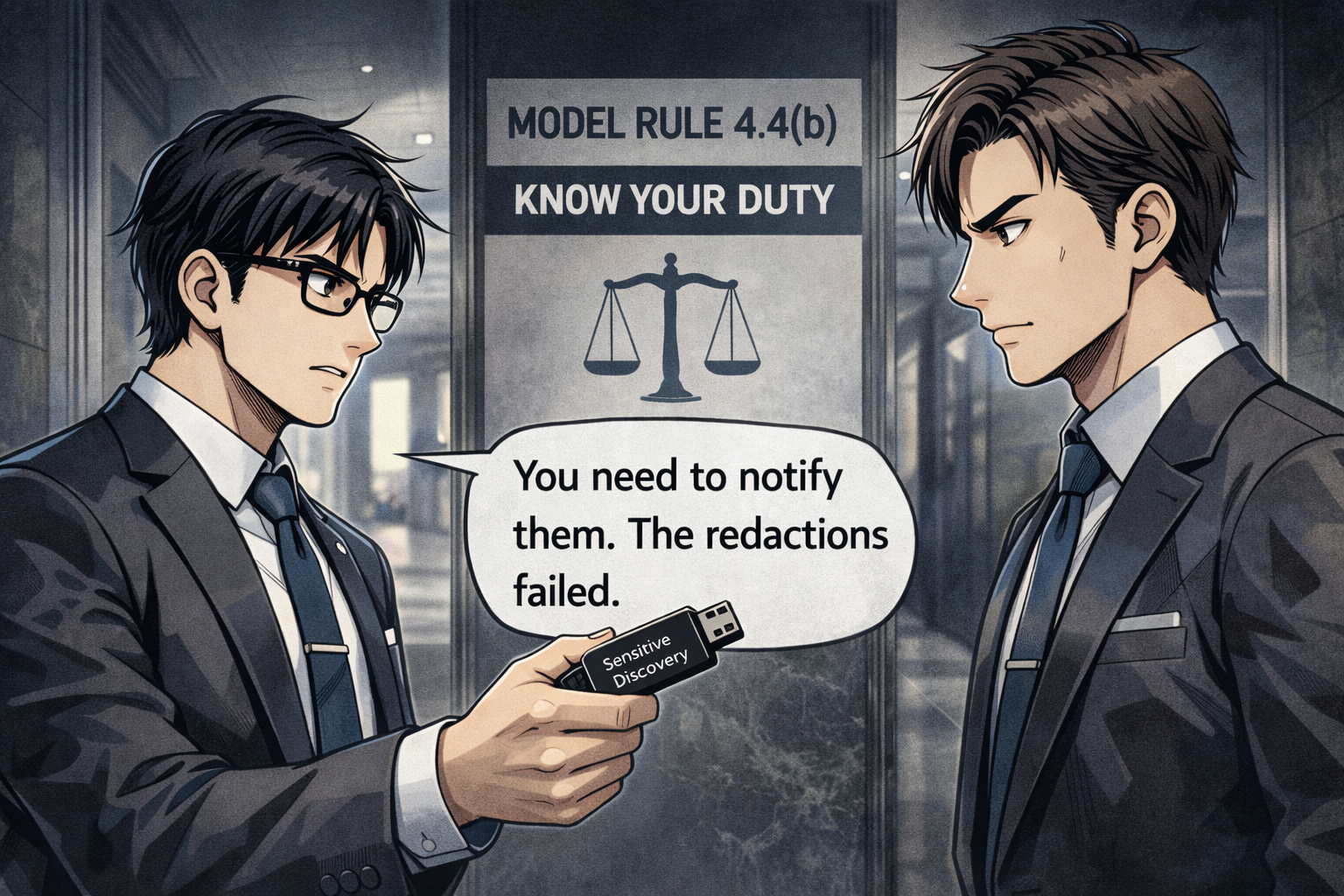
Lawyers, you have ethical obligations to redact documents competently.
ABA Model Rule 4.4(b) governs this. It addresses "Respect for Rights of Third Persons." It states: “A lawyer who receives a document... and knows or reasonably should know that the document was inadvertently sent shall promptly notify the sender.”
This is the key. Is a failed redaction "inadvertently sent"? Most ethics opinions say yes. The sender meant to hide it. They failed. They did not intend to send you the hidden text.
Do you have to stop reading?
The Model Rules do not explicitly say "stop reading." They only require you to notify the sender. However, many state jurisdictions go further. Some states require you to stop reading immediately. Some require you to delete the file.
The "Metadata" Exception
There is a nuance. ABA Formal Opinion 06-442 discusses metadata. It generally allows lawyers to look for hidden metadata. It views metadata as part of the file. However, "un-redacting" specific text is different. It is clearly privileged or sensitive.
The Bottom Line for the Receiver:
Stop if you realize it is a mistake.
Notify opposing counsel immediately. "I received your production. It appears the redactions are transparent. Please advise."
Do not use it until the issue is resolved. A judge will likely disqualify you if you exploit an obvious error.
Do not be the DOJ. Learn your tools. Sanitize your documents. And if you catch the other side making a mistake, follow the rules. It helps to keep your license safe. ⚖️ 💻